
Create Project Templates
A large number of projects developed by an organization have the same structure, or at least there are several types of standard project structures. To speed up the process of preparing the project structure, the application allows creation and later use of project templates.
Thus, the following steps are used to create a project template:
- Click on the create project template button (
) of the project from which you wish to create the new template.
- Select the types of elements to be included in the template.

All elements in the project belonging to the selected types will be included in the template.
If you decide to include diagrams, it is necessary to select also the elements included in them e.g. data models and documents. Otherwise, the template will contain the diagrams, but they will be empty.
The types of elements that are not included in the dialog (baselines, access partitions, user groups, etc.) are always included in the template, unless the template is created out of a baseline, in which case, that´s the only baseline that will be included in the template.
Once you finish selecting the desired element types, click on Next.
- In the second step of the process, you will be able to enter some additional information for the generated file, as well as choose the contents:
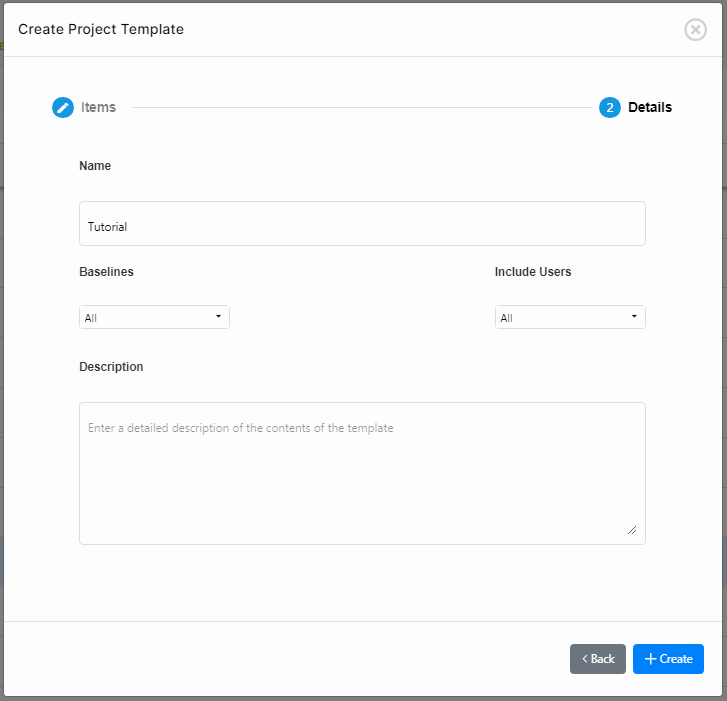
- Name: By default, the tool proposes for this file the name of the source project, but you may enter a name of your choice for the template.
- Description: This is a description text that will allow you and others in the future determine whether this is the appropriate template to go for when creating a new project
- Baselines: This option allows you to choose whether to include all the information of the project, which essentially duplicates the project, or whether you want to include exclusively the information pertaining to a given baseline. This option may come in handy when you want to create a new project identical to your current project at a previous point in time i.e. baseline. If you choose the current baseline, it´ll create a template with the current state of the items, but without history information.
- Include users:
- All: This option includes all the users of the repository in the template. You may want to do this, if maintaining the author of all elements is fundamental.
- None: This option will not include any users in the template. All elements will not belong to the ADMIN user.
- Only active: This option includes all the users of the repository that have not been deleted and are active.
- To generate the template, click on Create.
IMPORTANT NOTE: The generation of the template will start in the background, and you will be notified once completed. When completed, the template will be placed in the same folder as the rest of the templates, from where you will be able to download it or create a new project from.