
Editing projects
Administrators will be able to edit the properties of a project by either clicking on the edit button(
This will take the user to the project editing mode, which will allow users to navigate between different tabs. On top of them, you will be able to see a breadcrumb that will allow you to go back to the list of projects, as well as back to this area in case of navigating to a submenu.
General tab
In this tab, you will be able to visualize and/or edit the information of the project:
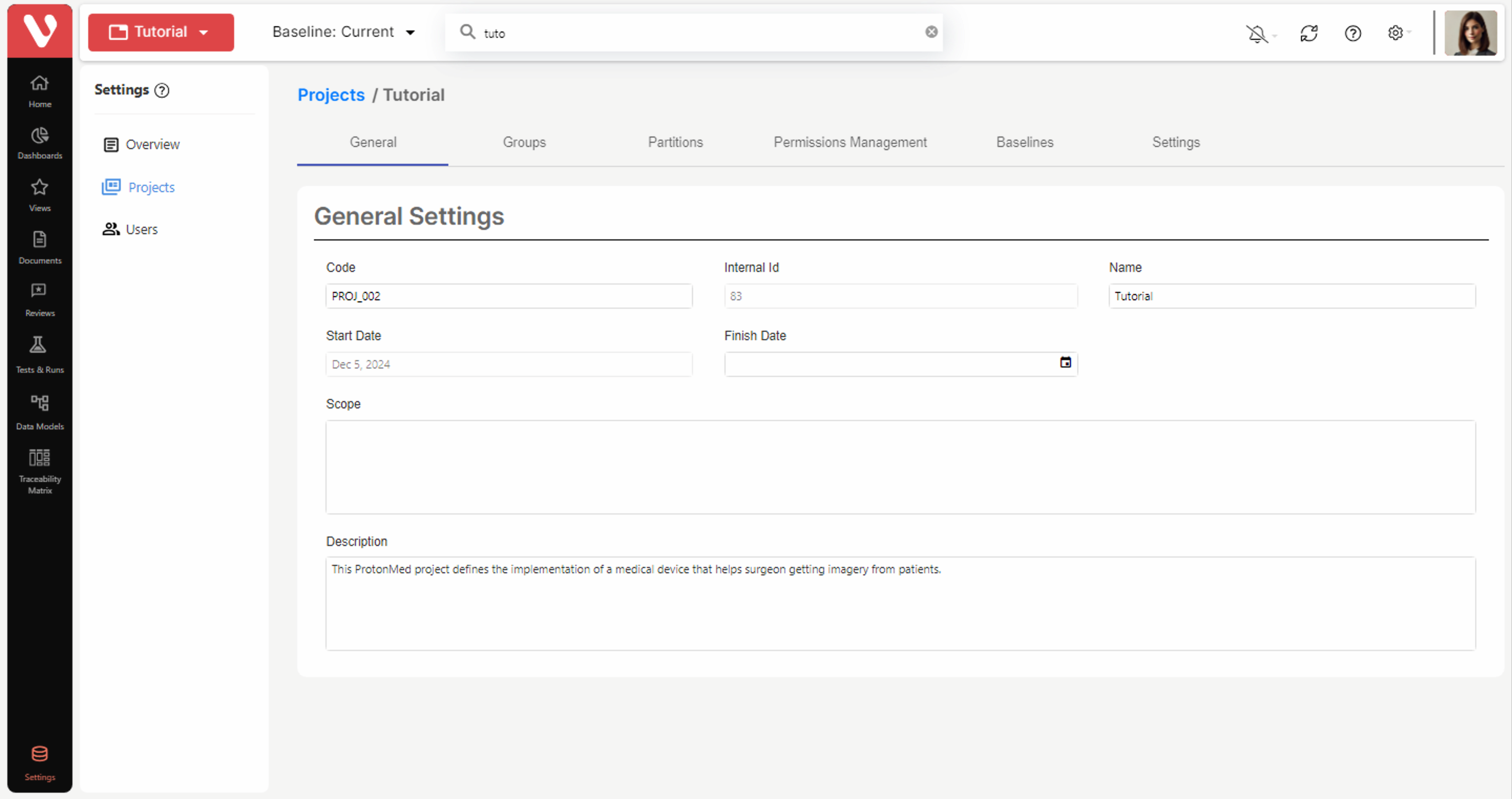
The following information is available:
- Code: Blank by default. The code assigned to the project in the organization’s project management system can be entered in this field.
- Internal ID: This ID is assigned automatically to the project during project creation and cannot be modified. It may be used as a unique identifier for the project. Please NOTE that if the project is exported and imported again, this ID will change.
- Name: The name given to the project when it is created. It can be modified in this tab.
- Start date: The date and time when the project was created.
- End date: Blank by default. This is the expected end date of the project, which can be selected by the user.
- Scope: Blank by default. The user can modify this value.
Description: The description entered when the project was created is shown by default. Can be modified by the user.
Groups
In this tab, you will be able to manage the user groups in the project, creating, editing, deleting them and adding users to them.
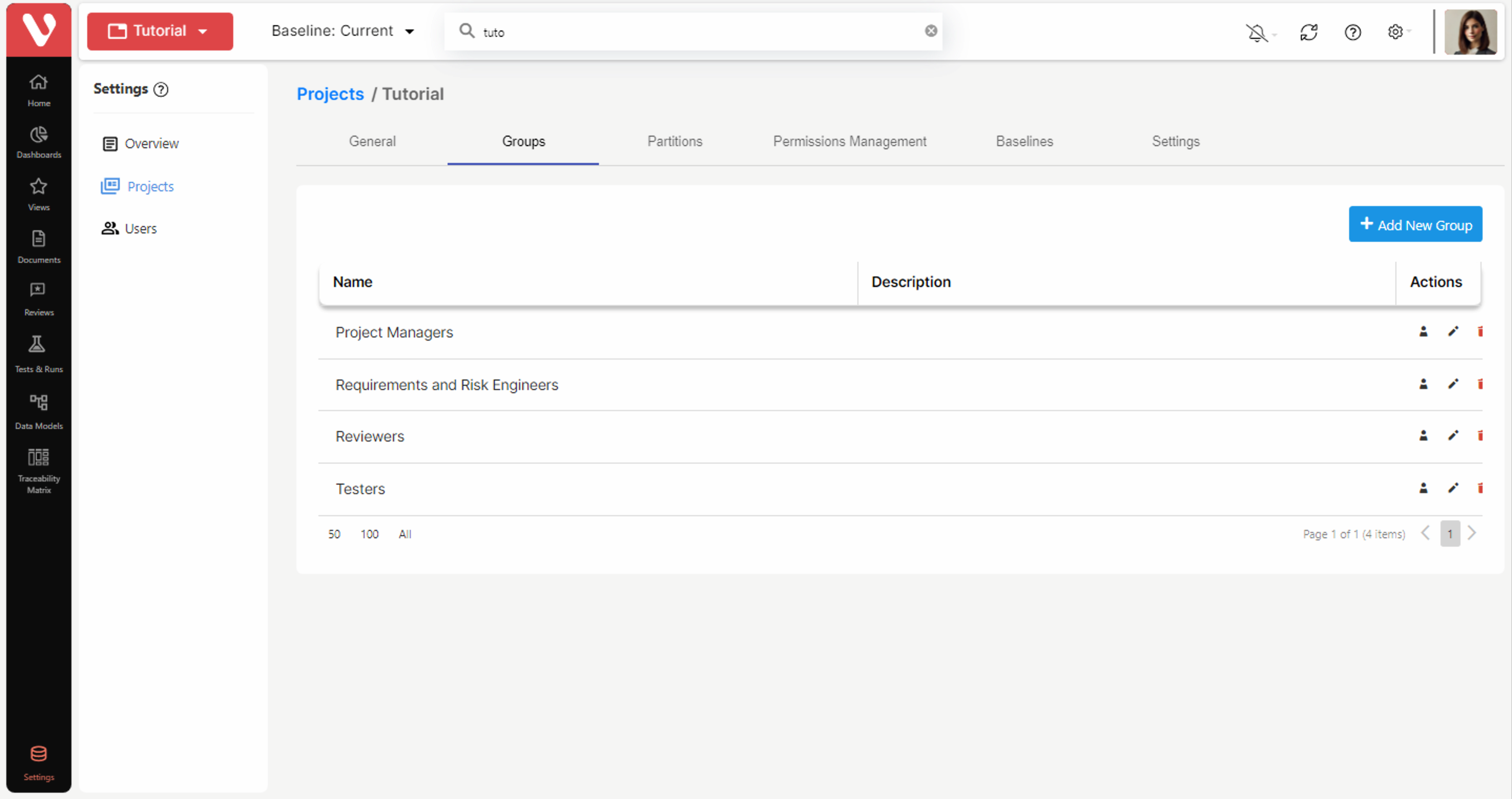
Creating Groups
As described in previous sections, user groups are defined at project level. Project user groups are independent from those of other projects in the same Visure database.
There are two types of User Groups:
- Project Administrators. Project Administrators are users of the Visure database belonging to at least one Group of Administrators of a project, that is, they have administration privileges over the projects they are administrators of. These users may access, through the Repository and project settings, only the projects they are administrators of.
- Rest of Users. These users do not have administration privileges over the projects in the Visure database; due to that reason, these users are not allowed access to the repository and project settings and thus cannot perform administration tasks. They may only access the project through the Visure Requirements Client to perform Requirements Engineering tasks.
All projects have at least one group of users, the group Administrators whose members are administrators of the project. The users of the group Administrators have access to all the elements of the project and are in charge of performing its administration and management tasks.
The name of this Administrators group can be changed, so in your projects, it may be called something different such as Project Managers, for instance.
To create a new group of users:
1. Click on the Add New Group button (
IMPORTANT NOTE: Only the ADMIN user, Super Administrators and the administrators of the project have authorization to create new user groups on the project.
2. The following dialog box will appear:
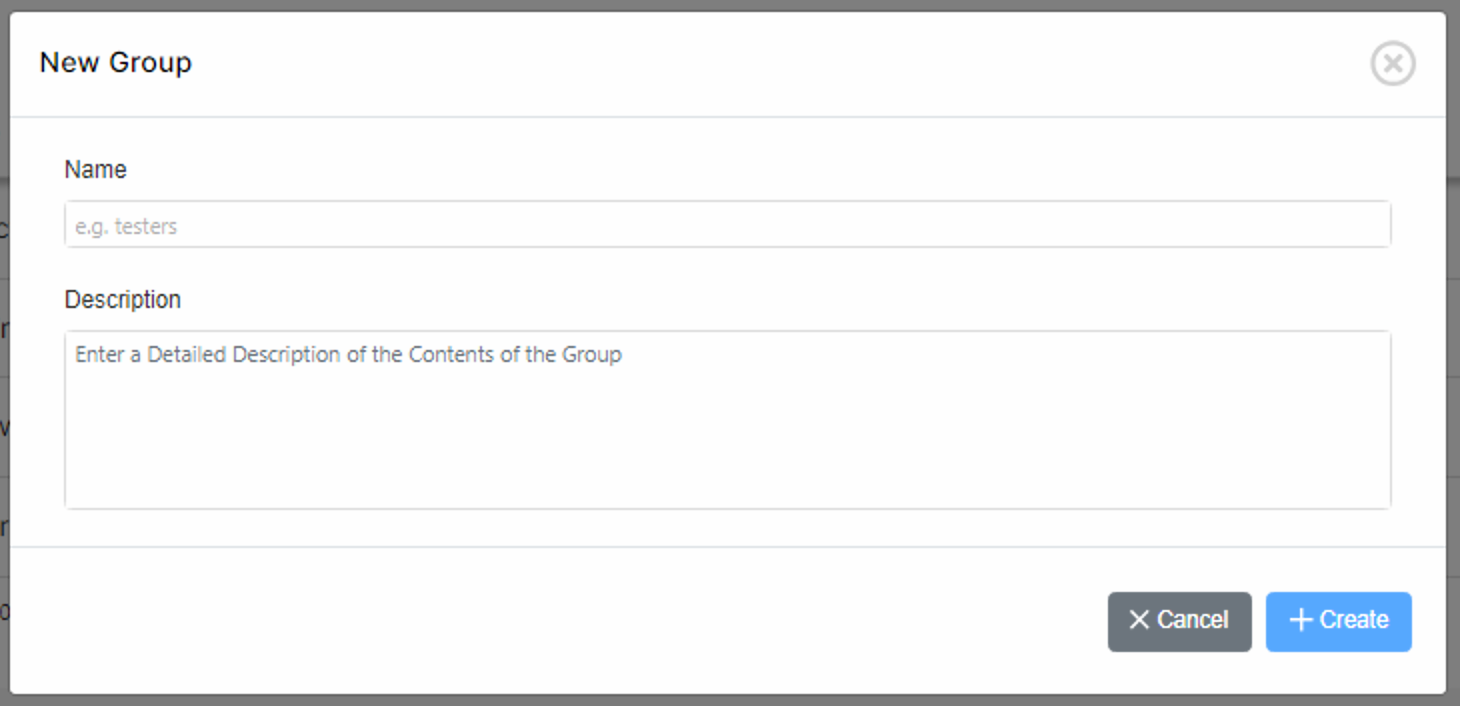
3. Enter the name and the description of the new User Group and click on Create. The name of the user group has to be unique inside the project.
Including Users in Groups
To include users of the Visure database in a group of users of a project:
- Click on the assign users button (
) of the access partition you want to assign a user to.
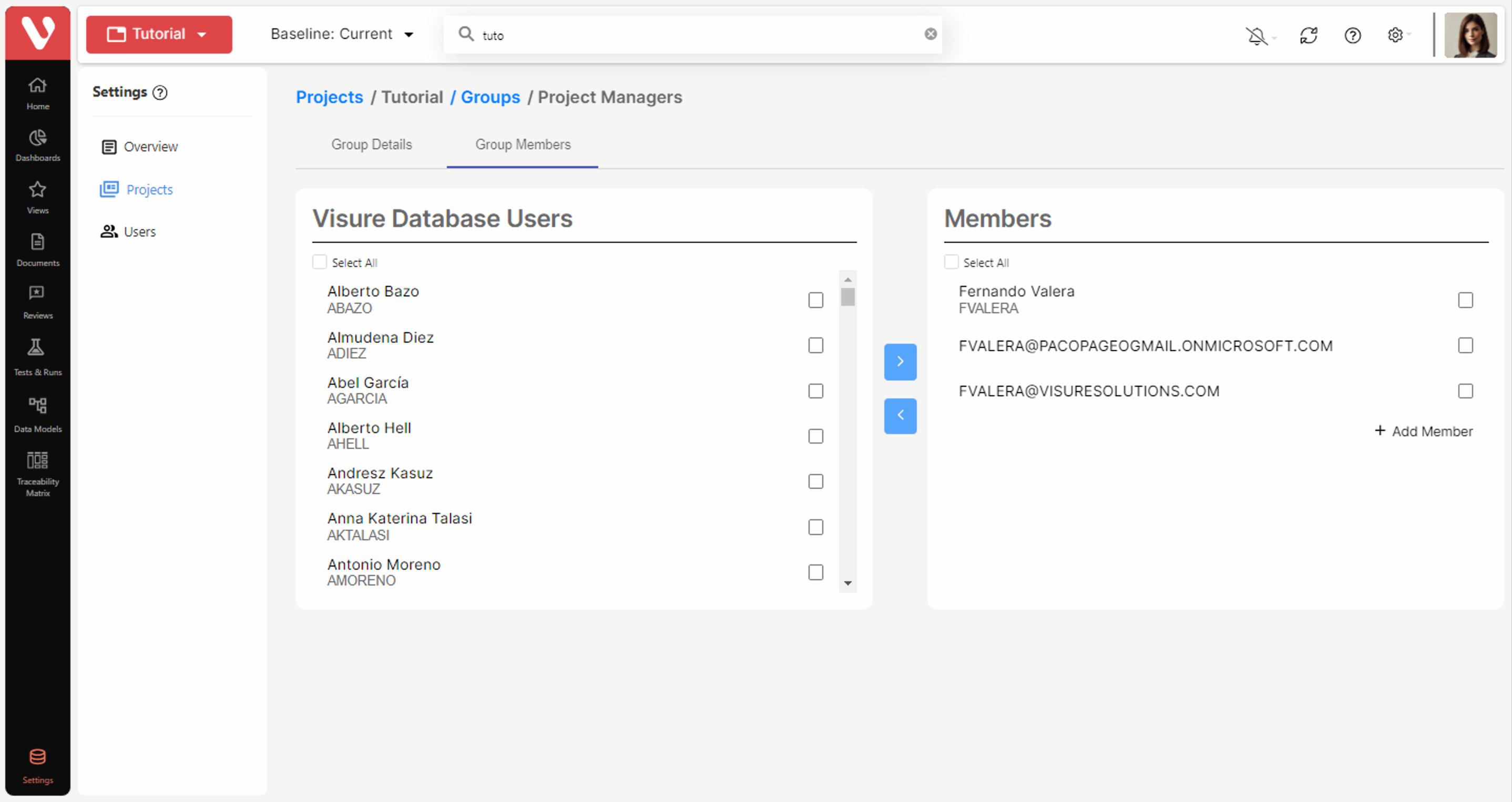
2. Select the users from the list at the left-hand side and click on the assign button (
If the e-mail notification option is active, and this notification is enabled, the users assigned to the group will receive an e-mail notifying them that they have been assigned to a new project. To create a new user belonging to selected group click on the Add Member button 
IMPORTANT NOTE: On a project, a user of the Visure database may belong to several groups of users. In this case, when the user opens a project for the first time, they will be logged in with the first user group. The user will then be able to change the user group.
From that moment on, the user will be logged with the last user group used for that project.
IMPORTANT NOTE: The ADMIN user can never be excluded from the Administrators group of the Visure database’s projects, therefore, the ADMIN will never be displayed in the available list of users.
Modifying Groups
To modify the properties of a group:
- Click on the edit button (
) of the group you would like to change the properties of.
- You will be taken to the following window:
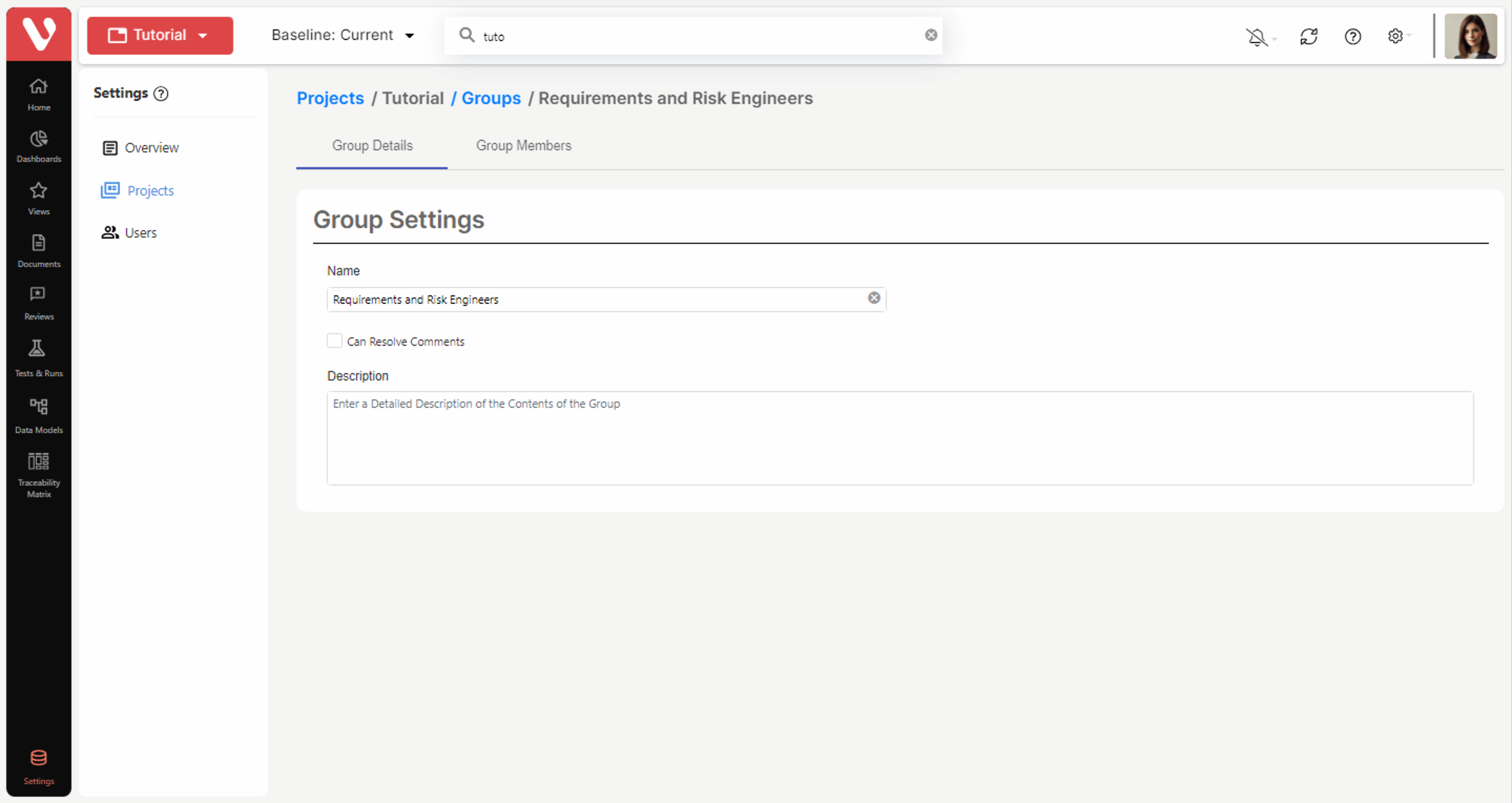
In this window, you will be able to change the name and description of the. If the Can resolve comments option is checked, members of the user group will be able to resolve comment threads even if they were initiated by other users. By default, the option is not checked.
IMPORTANT NOTE: For the Administrators Group, the Can resolve comments option cannot be unchecked.
Deleting Groups
To delete a group:
1. Click on the delete icon (
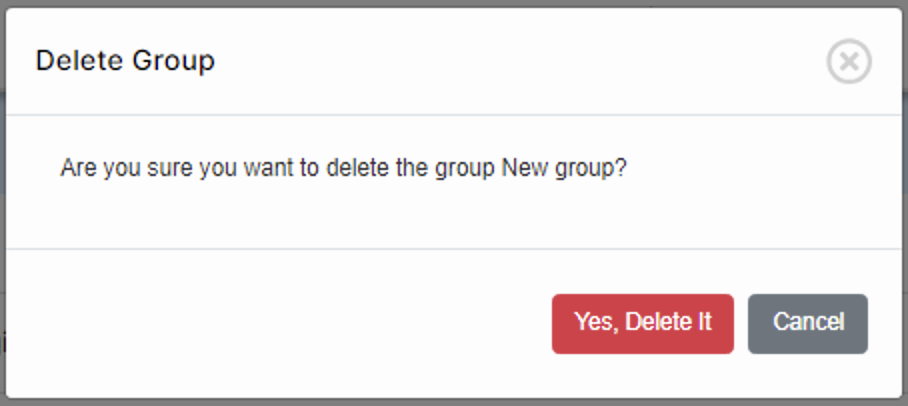
2. Click on Yes and the selected group will be destroyed from the project.
IMPORTANT NOTE: There is no recycle bin for groups. When a user group is deleted, it is automatically destroyed from the project.
IMPORTANT NOTE: A user group can be deleted from a project only if it does not contain any users, including users who belonged to the group but who have been deleted from the project.
If there are any users that have been deleted from the project but belonged to the group that will be deleted, the group cannot be deleted until the users have been excluded from the group.
The Administrators group may not be deleted under any circumstance.