Partitions
Access Partitions are “containers” or “policies” on the basis of which permissions are established. Access Partitions are defined at project level and the access partitions of one project are totally independent of the access partitions of other projects in the same Visure database.
All elements of the project including items, attributes, documents, etc. need to belong to one and only one access partition.
In all projects, there is at least one access partition that is created by default when the project is created and that cannot be deleted. That is the Default access partition.
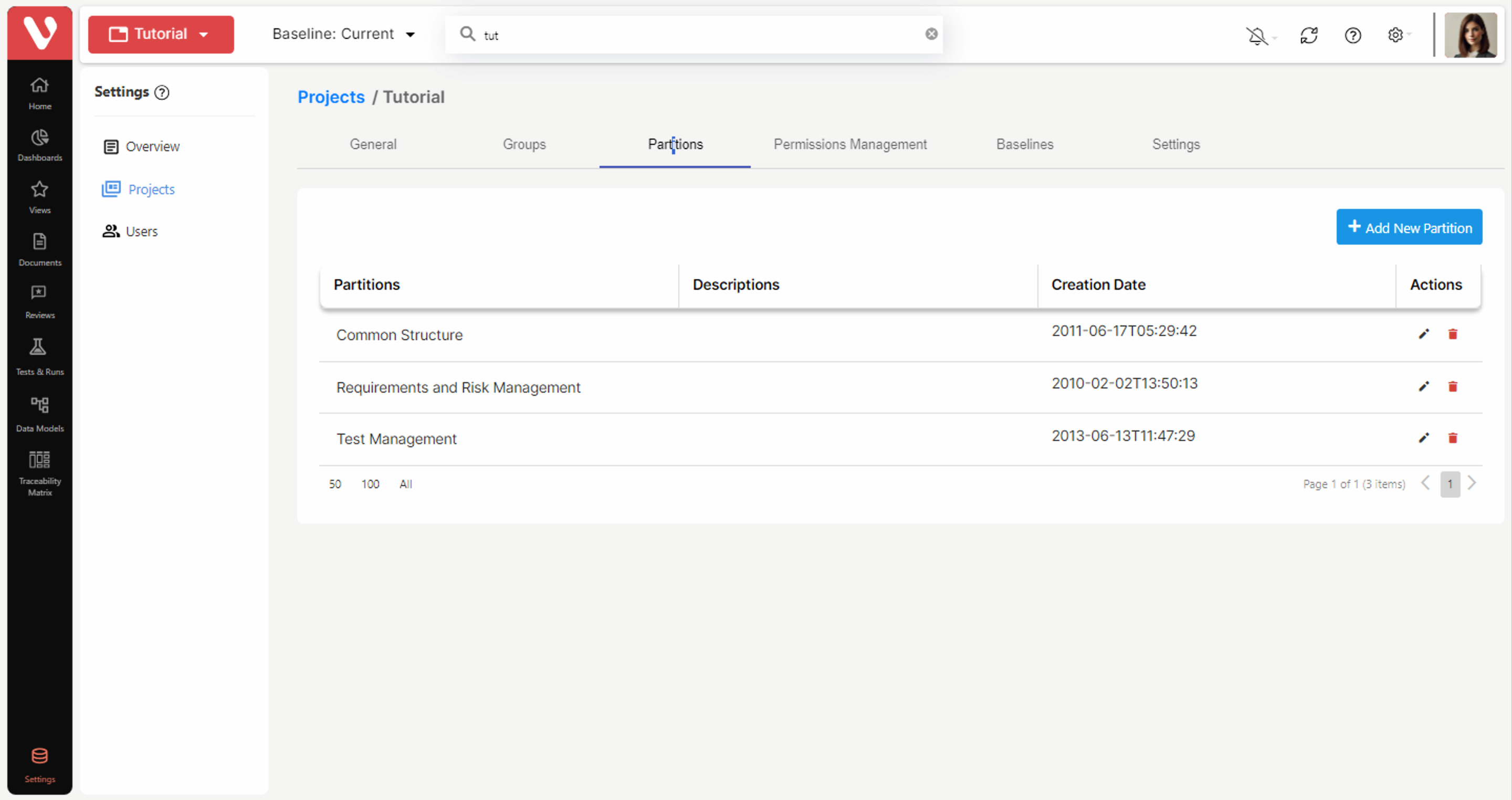
In this partitions tab, you will be able to manage partitions, creating, deleting and editing them:
Creating Access Partitions
When a new access partition is created, the user will indicate whether the access partition may contain all the types of elements available in the application, or only some of them.
To create a new partition:
Click on the Add New Partition button (
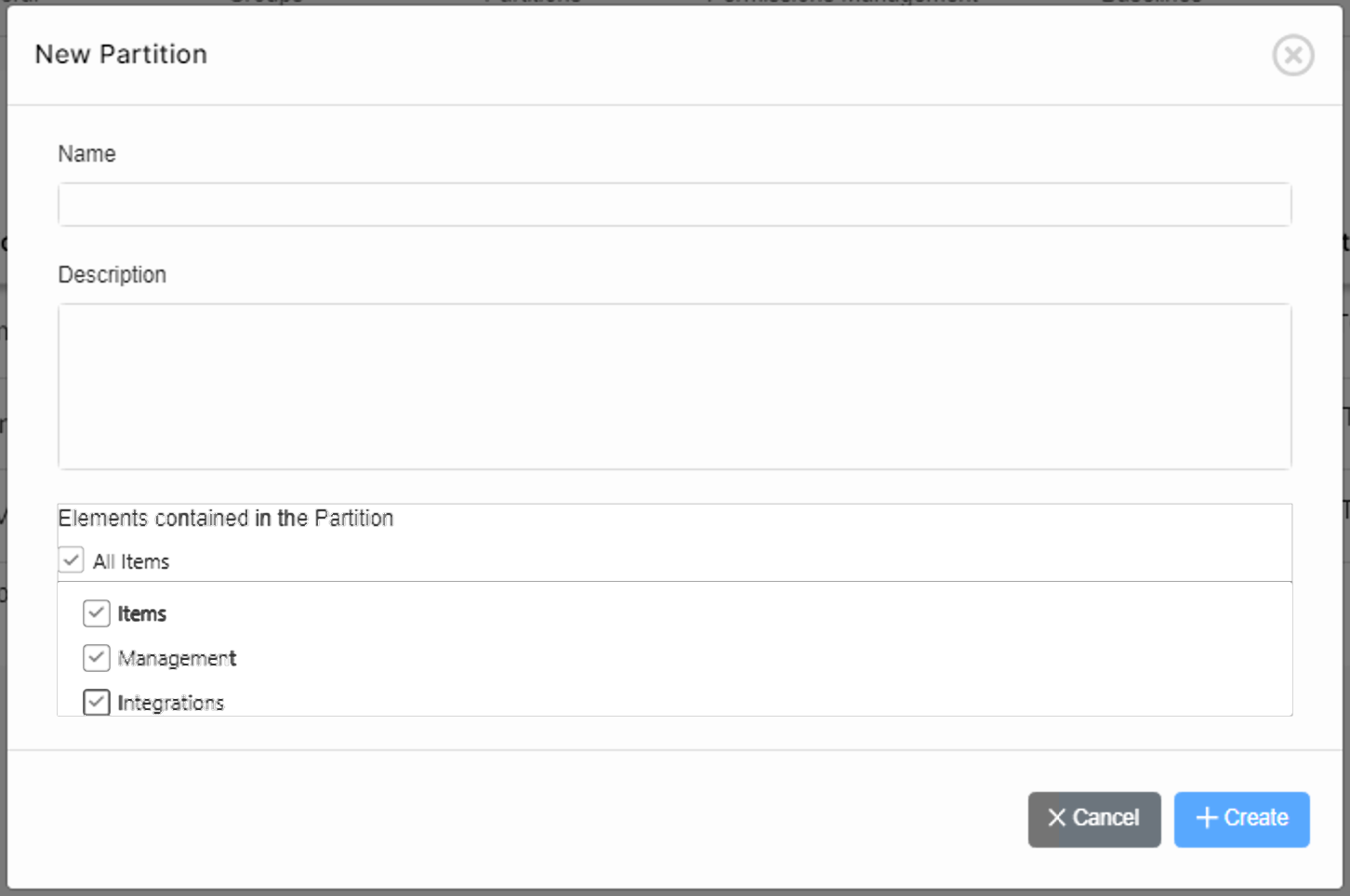
- Input the name, description and types of elements the new partition may contain.
Select All types so the access partition may contain any element of the specification.
Select Only the next types to select the types of elements that may be included in the new partition:
By selecting: | The following may be included in the partition: |
| Items | Items Link types |
| Management | Documents Data models Domains Domain Diagrams Components Attribute Types Attributes Attribute workflows Link types |
| Integrations | External Items Attribute types Attributes Link types Documents Data models |
After selecting the types of elements to be included, click on Create.
Modifying Access Partitions
To modify the properties of an access partition:
Click on the edit button (
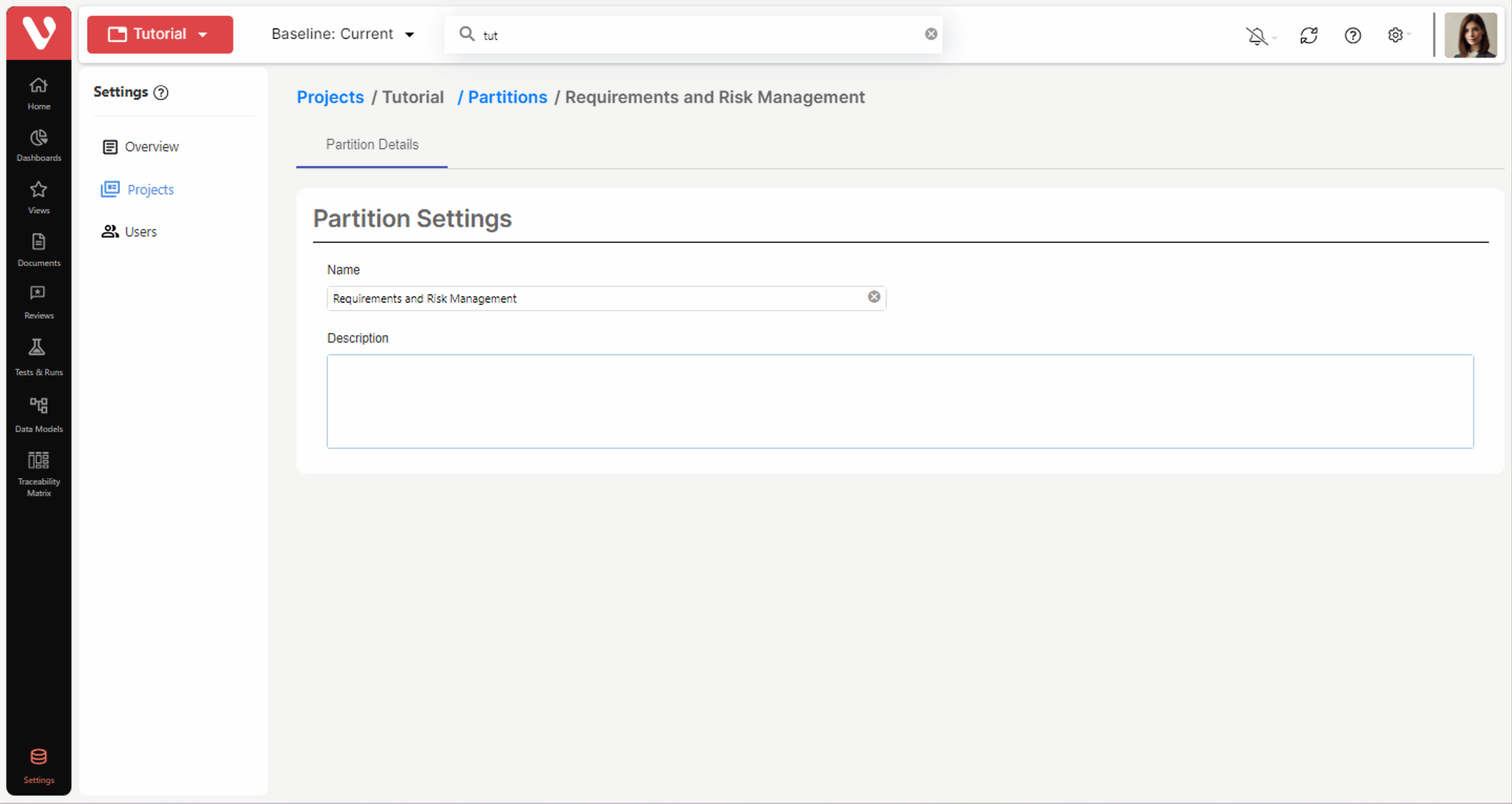
2. Edit the name and Description field as appropriate. The types of elements that may be included in a partition may not be modified. These rules also apply to the Default partition.
Deleting Access Partitions
To delete a project access partition:
- Click on the delete button (
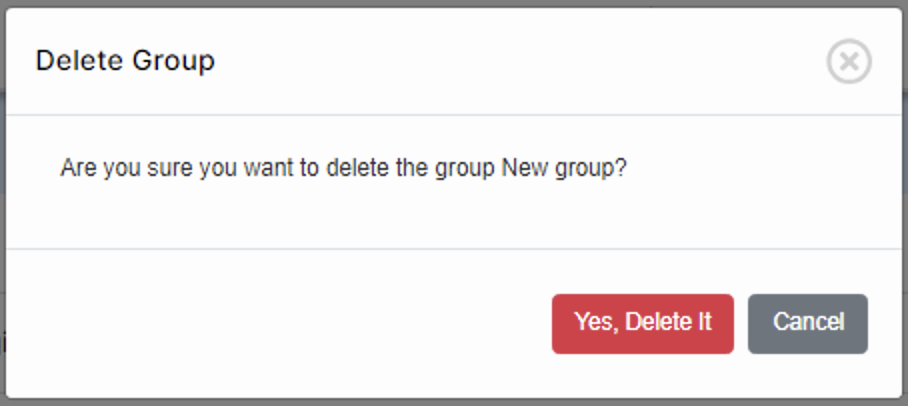
) of the partition you would like to delete. The following confirmation dialog will appear:
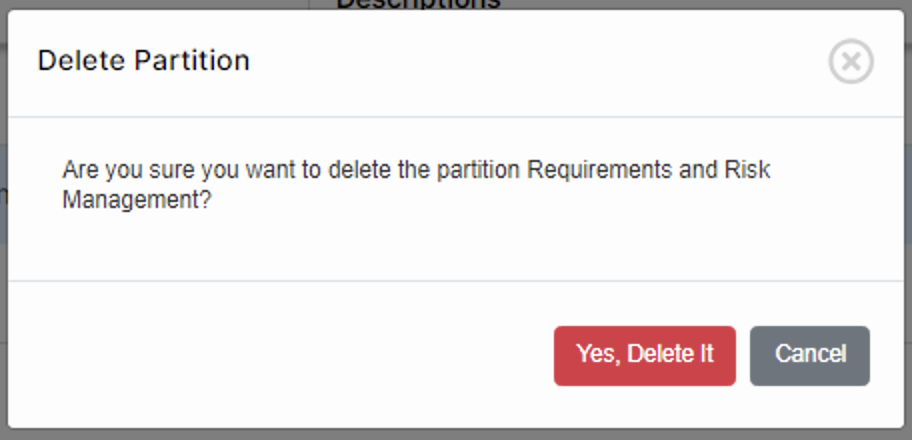
2. Click on Yes and the selected partition will be destroyed from the project.
IMPORTANT NOTE: There is no recycle bin for partitions. When partition is deleted, it is automatically destroyed from the project.
IMPORTANT NOTE: A partition can be deleted from a project only if it does not contain any items, including items that may have been deleted from the project.
If there are any items that have been deleted from the project but belonged to the partition that you are trying to delete, the partition will not be deleted, and you will first have to destroy the items or reallocate them to another partition.
The Default partition may not be deleted under any circumstance.
Deleting Groups
To delete a group:
- Click on the delete icon (
) of the group you would like to delete. The following message will appear: