How to create a Review Session?
Reviews are created automatically based on an existing document. After selecting the corresponding document, a new review will be created containing all, part or none of the items contained in it (items may be included later on). The new review will be placed either in a manually selected folder, or in an automatically generated path.
Reviews can be created either from the Reviews section or from the Documents section. From the documents section, simply right-click on the document you want to create a review of and select Create Review:
Another option is from the Reviews section, click on the 
A dialog window will appear where you will be able to select multiple options for the review, including:
- Baseline: By default, the current baseline will be selected. If another baseline is selected, the documents in that baseline will be available in the next menu.
- Document: If the review was created from a document, this document will be selected by default. This list will only display the documents available in the selected baseline.
- Name: The review session will automatically display a name composed of REV_, the name of the document, the date and the time. You may change the proposed name.
- Access Partition: These are the access rights we want to give to the new review, who can see it and who can edit it.
- Create in custom folder:
- If this option is disabled, the review session will be included in a path mimicking the path of the original document, plus a folder with the same name as the document itself, in which all of its reviews will be included. For instance, if the following document and path is selected:
- Requirement Specifications
- Component Requirements
- Software Requirements Specification
- Component Requirements
- Requirement Specifications
- The review session will be included in the following path:
- Reviews
- REV_Requirement Specifications
- REV_Component Requirements
- REV_Software Requirements Specification
- REV_Software Requirements Specification_DDDD_TTTT
- REV_Software Requirements Specification
- REV_Component Requirements
- REV_Requirement Specifications
- This way, all reviews of the same document will be included in the same folder.
- If this option is selected, you will be able to select a specific location of your own.
- If this option is disabled, the review session will be included in a path mimicking the path of the original document, plus a folder with the same name as the document itself, in which all of its reviews will be included. For instance, if the following document and path is selected:
NOTE: All new documents and reviews will be included in a higher level “Reviews” folder. This higher-level folder will allow you to assign attributes and views to all reviews at the same time.
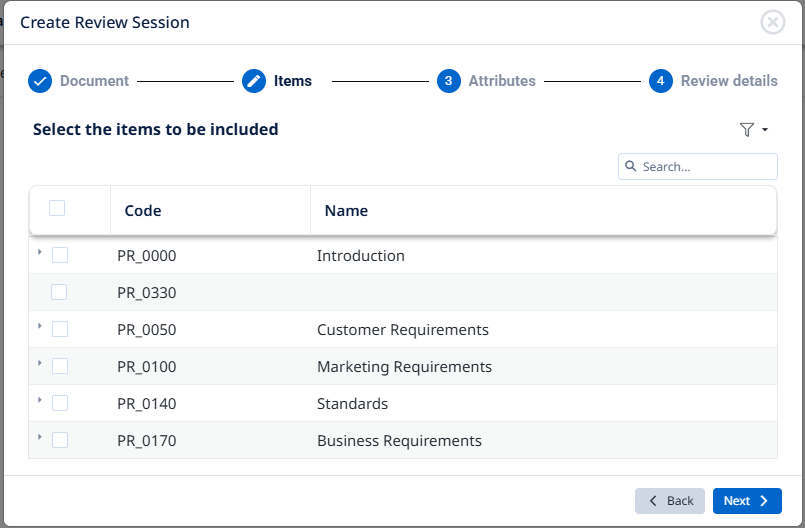
In the next step of the process, you will be able to select the items to be included in the review. This can be done manually, applying a filter, or later on, after the review has been created too.
Once selected, click on Next.
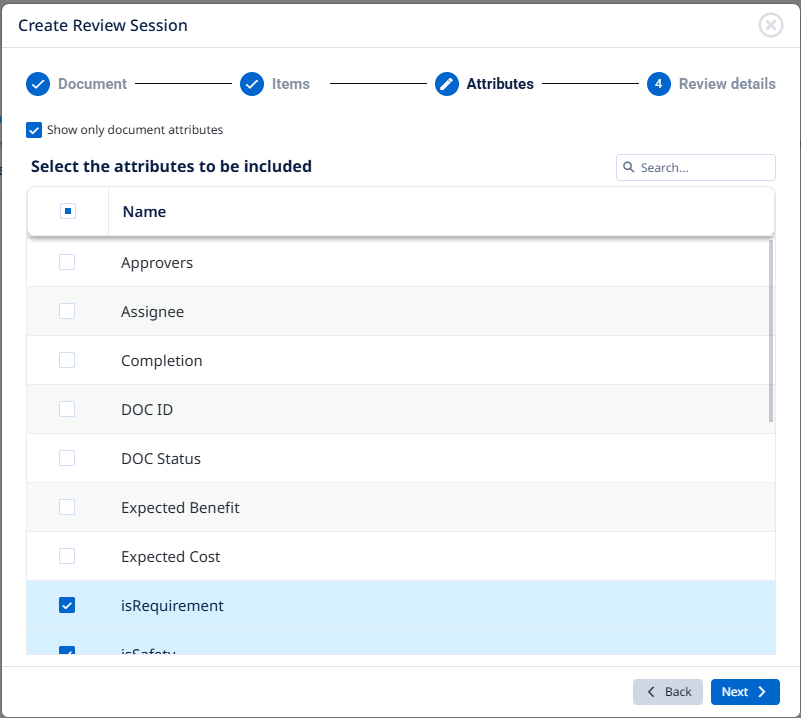
The next step of the process allows you to select which attributes should be copied from the original items into the review items. Only the attributes of the original document will be displayed in this list, but if you would like to show all attributes, simply disable the Show only document attributes.

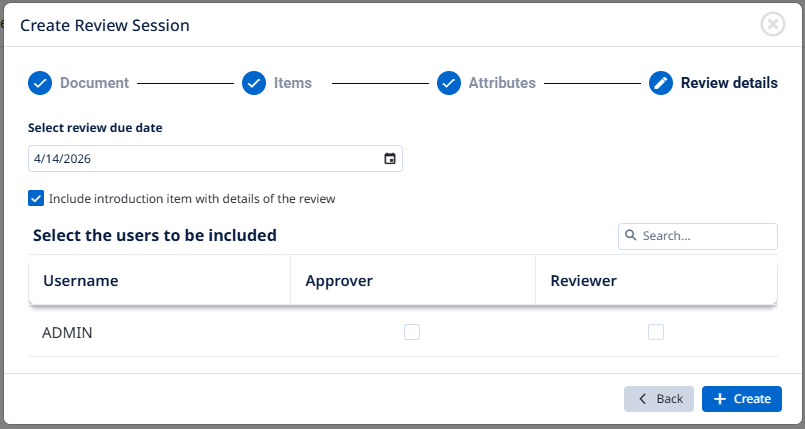
In the last step of the process, you will be able to select a Review Due Date, Approvers, Reviewers, and indicate whether you would like to include a summary introduction item in the review:
NOTE: In order for the following items to work, the Review Python Script must be enabled in the Visure server
•Review Due Date: After this date, users won´t be able to approve, reject or enter comments.
•Approvers: The selected users will be able to approve, reject or enter comments over items. Neither one of these actions require checking out the items, therefore, users with read-only access rights may be assigned as Approvers.
•Reviewers: The selected users will be able to enter comments and reply over items. Neither one of these actions require checking out the items, therefore, users with read-only access rights may be assigned as Reviewers.
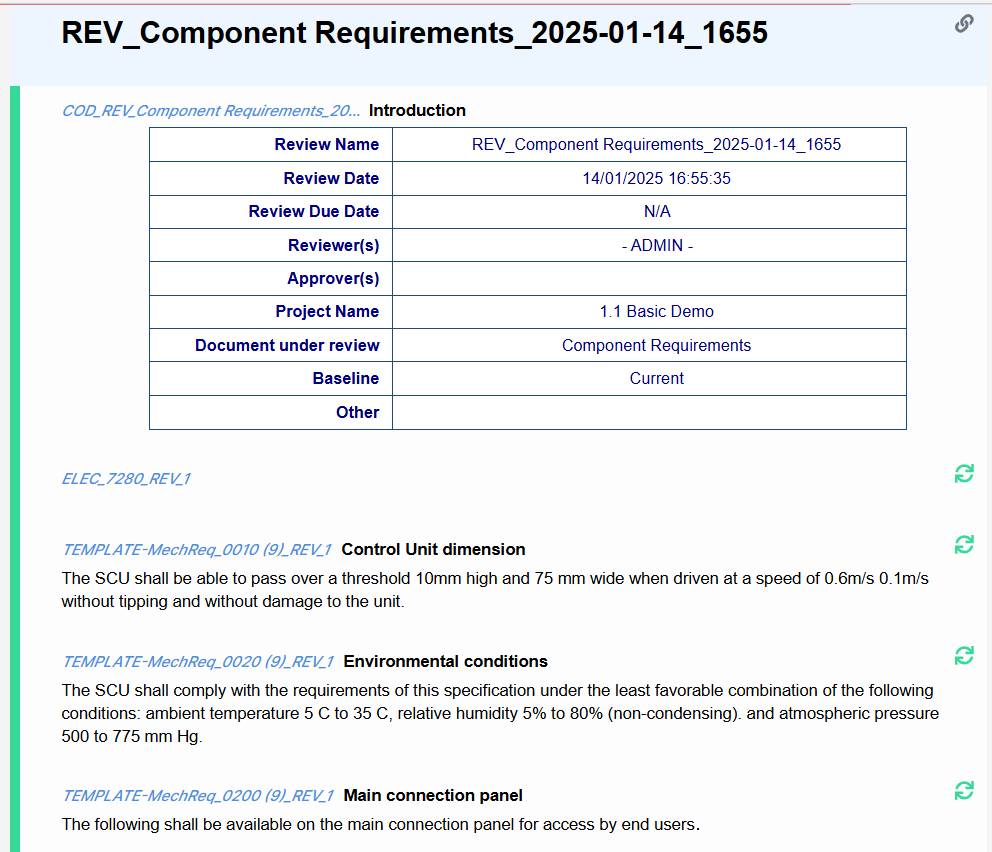
Include introduction item: If you select this option, at the beginning of the review a summary table will be created with the following information and format, which you can modify as needed, for instance, to add relevant information:
Review Name | Name of the new review |
Review Date | Review creation time and date |
Review Due Date | Review due date |
Reviewer(s) | List of assigned reviewers with login and email information |
Approver(s) | List of assigned approvers with login and email information |
Project Name | Project name |
Document under review | Name of the original document selected to create the review |
Baseline | Baseline selected to create the review from |
Other | This is an empty field that can be used to enter information relevant to the review, such as conditions, restrictions, information on where to find additional resources, etc. |
The review will look like this: