Filters
Applying filters
Filters can be applied so that the list of items will only display the ones that comply with the filtering criteria. To apply a filter, click on the Filter button 
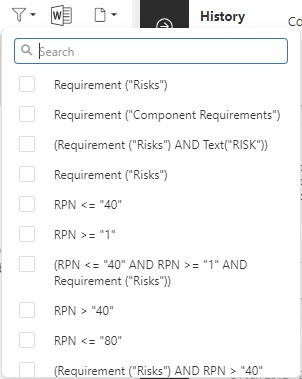
Writing a text in the Search area, the list of available filters will display only the ones that contain the text. The applied filters will be displayed on top of the list of items.
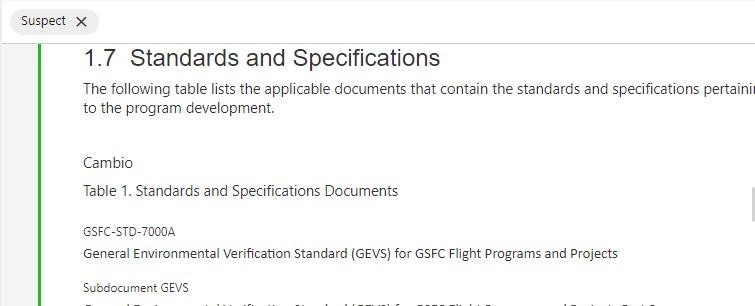
To stop applying the filter click on the x to the right of the filter name or uncheck it in the filter list.
Creating filters
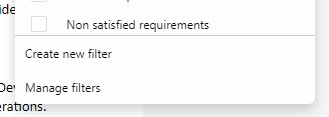
Users can create new filters by selecting the Create new filter option in the filters menu:
A dialog box will appear that will allow the user to create the corresponding filter.
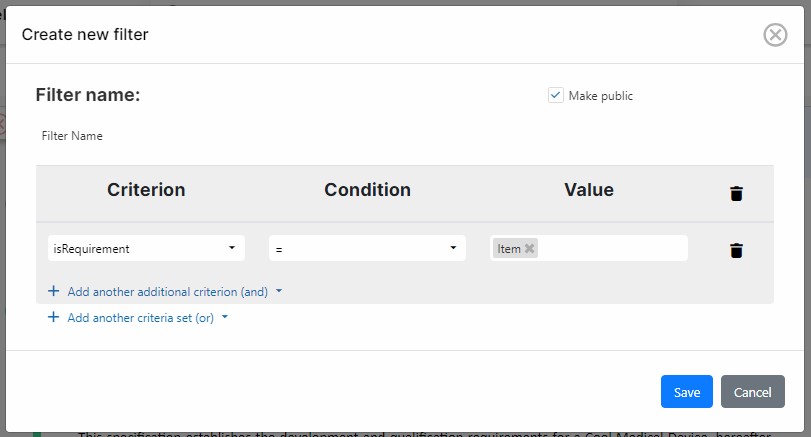
To create a new filter, select the following information:
- Name: Give the filter a descriptive name
- Make public: Indicate whether this filter should be used only by you, or whether you would like to share it with the rest of the users of the project.
- Add criterion:
- Type: Users can select among different types of filters e.g. attributes, dates, links, etc.
- Criterion, condition, and value: based on the criterion used, the conditions and values will change.
- Add additional criteria: The user may add AND or OR conditions to the filter.
Managing filters
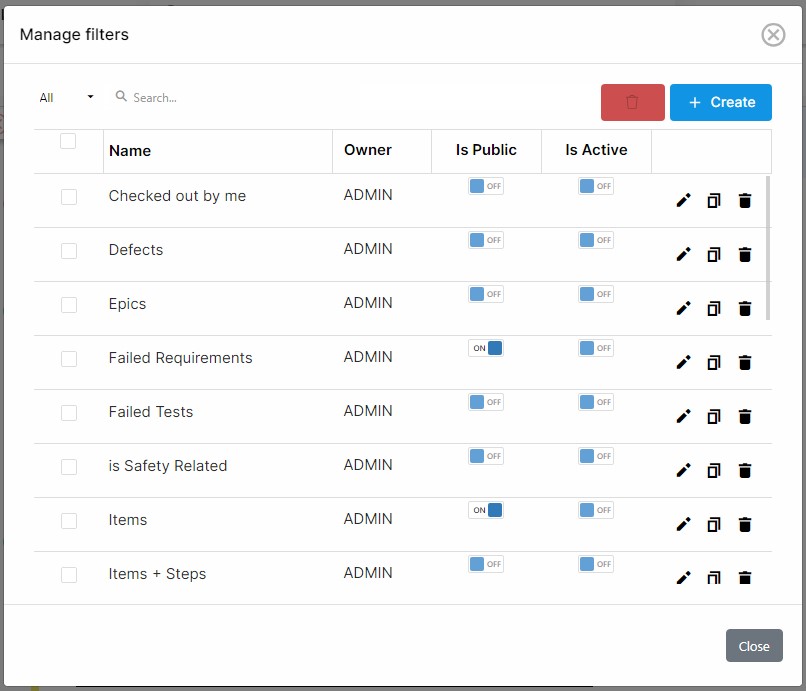
Users can manage existing filters by selecting the Create new filter option in the filters menu:
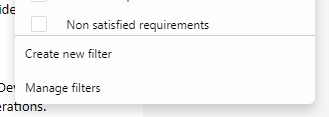
The filter management window allows users to:
- Create new filters
- Delete existing filters
- Search for existing filters
- Visualize the owner of a filter that has been shared to us
- Share a filter (make public)
- Active a filter
- Edit the contents of the filter
- Duplicate the filter