
Purge elements
In order to improve performance and reduce the amount of unnecessary project information, you may purge a project. Purging a project means that intermediate versions of items are destroyed, along with all their related information, freeing up space in the database.
Previous versions of elements in a project can be deleted whenever they do not belong to any baseline.
To purge a project:
- Click on the purge button (
) of the project you want to purge. The following dialog box will appear:
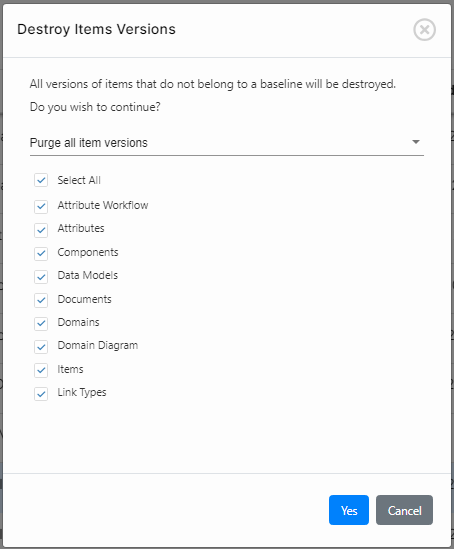
- Select the type of purge to perform:
- Purge all item versions: All versions that do not belong to a consolidated baseline will be deleted.
- Purge versions prior to the most recent baseline: All versions that do not belong to a consolidated baseline, prior to the latest baseline will be deleted. This means that all versions created after the latest baseline the item was included in, will be kept. This baseline may be different for different items.
- Purge versions prior to the date of the project creation: All versions inherited from the template that do not belong to a baseline will be deleted.
- Select the types of elements you want to be purged.
- Click on Yes to proceed.
IMPORTANT NOTE: This process may take a while, and you may not be able to work on the project in the meantime. It is recommended to perform this action during non-working hours.