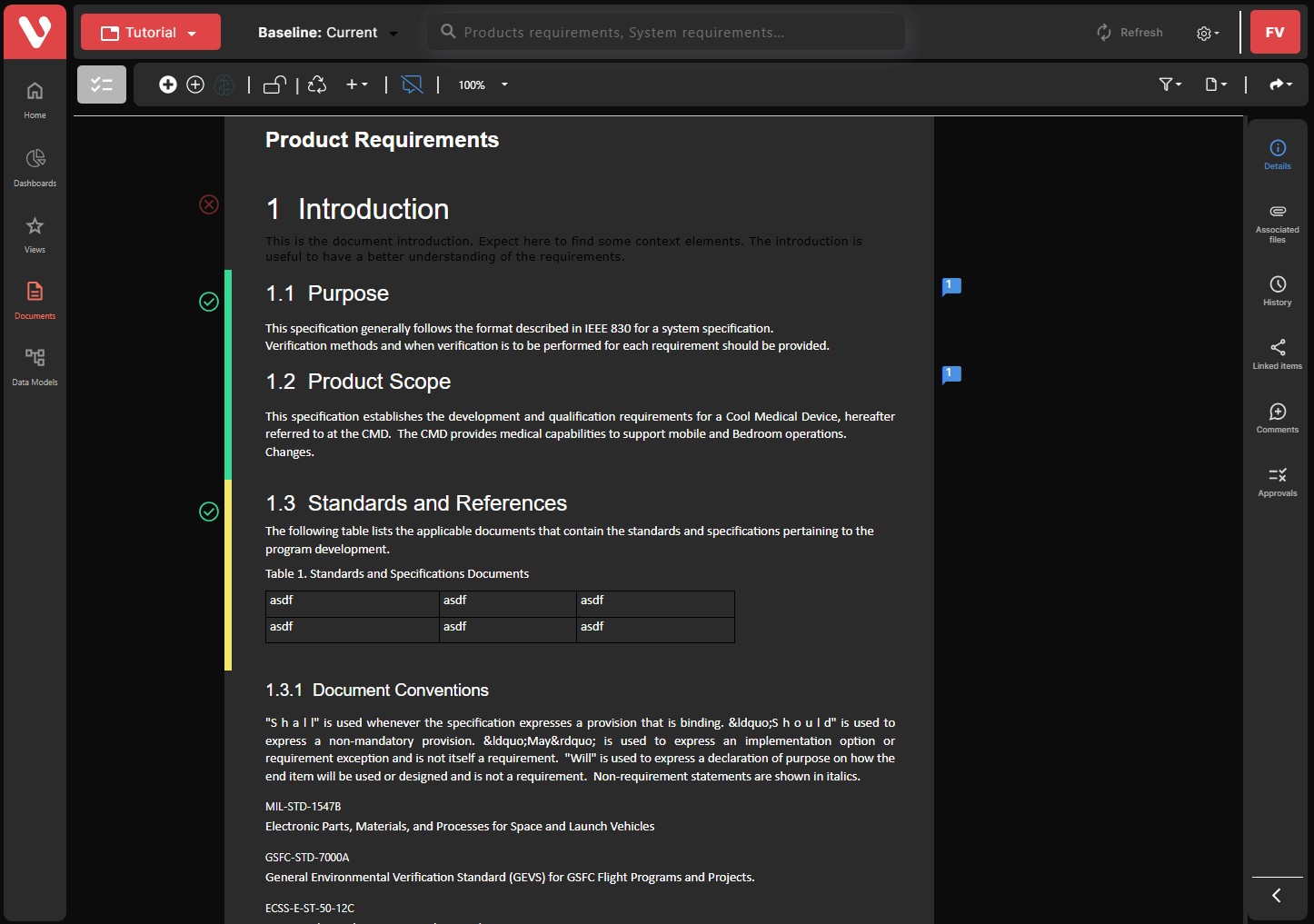
Profile Manager
Selecting the user group
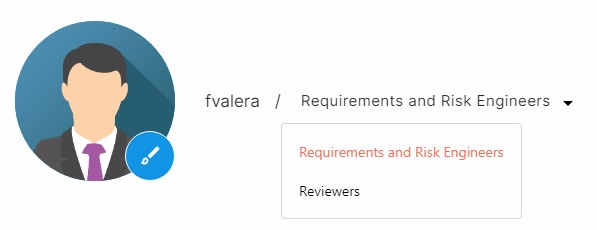
If the user belongs to more than one user group in the project, it is possible to change the user group used for the current session.
To select a different user group, simply select it from the drop-down menu:
Edit Profile
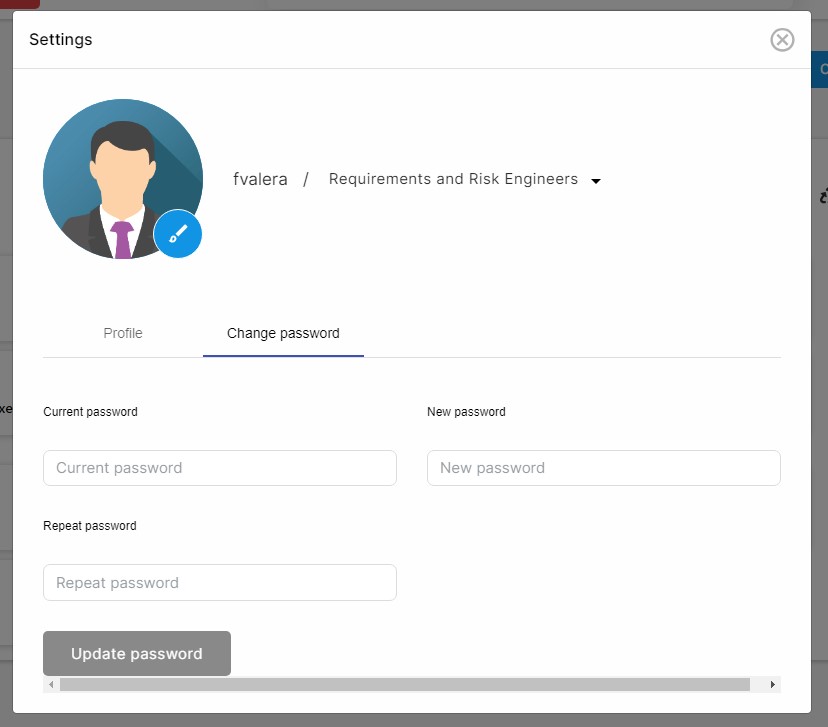
The profile manager can also be used to change certain user settings such as the first and last name, email, and phone number. Once changed, click on Update profile to save the changes.

Change password
To change the password, click on the second tab of the profile manager, and enter the current password, your new password, and re-type your new password. Then click on Update password:
Help Menu
Clicking on the Help button, the user can access the User Manual.
Logs Viewer
The logs viewer allows users visualize the logs, and filter them based on the type:
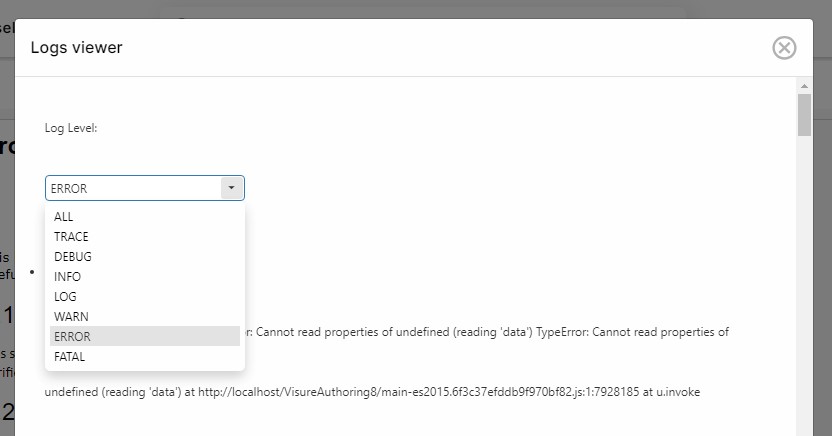
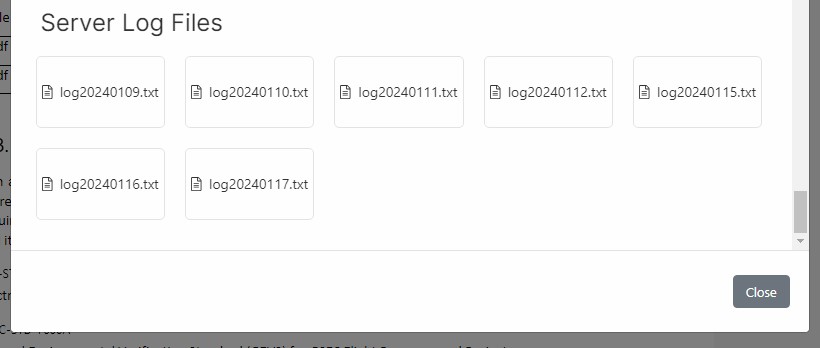
At the end of the page, users will be able to download the entire log file(s) to provide them to Visure for troubleshooting.
Dark Mode
Users can toggle the display mode between light and dark mode. The light mode is a white based user interface, while the dark mode provides a grey-based user interface: