
History Tab
This tab shows information on the versions of the selected item.
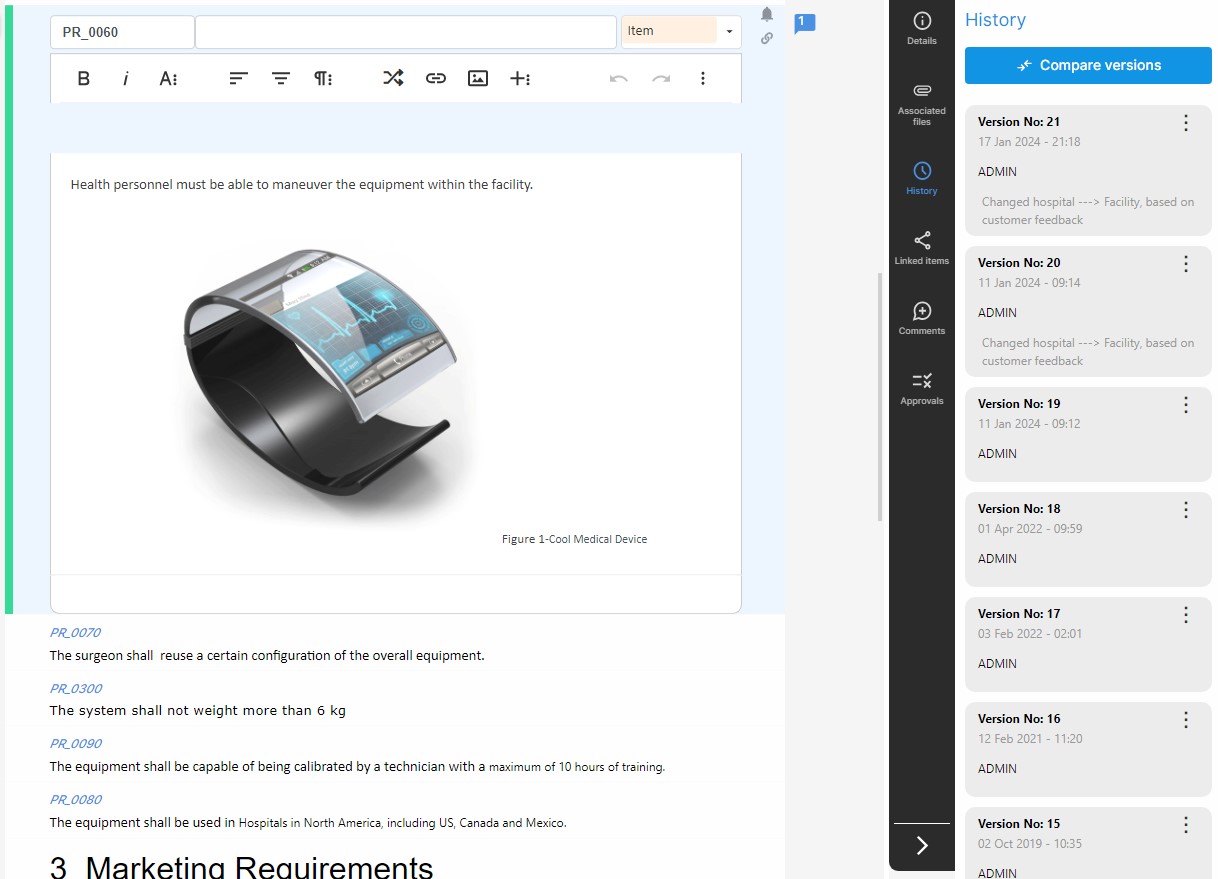
For each version of the item, the following information is displayed:
- Version number
- Creation date
- Author
- Check-in comment
Clicking on the arrow to the left of each version number, more information on the version is displayed:
- Code
- Name
- List of project baselines to which the selected version belongs.
To see more information on a version click on the more options icon (
The following dialog is displayed:
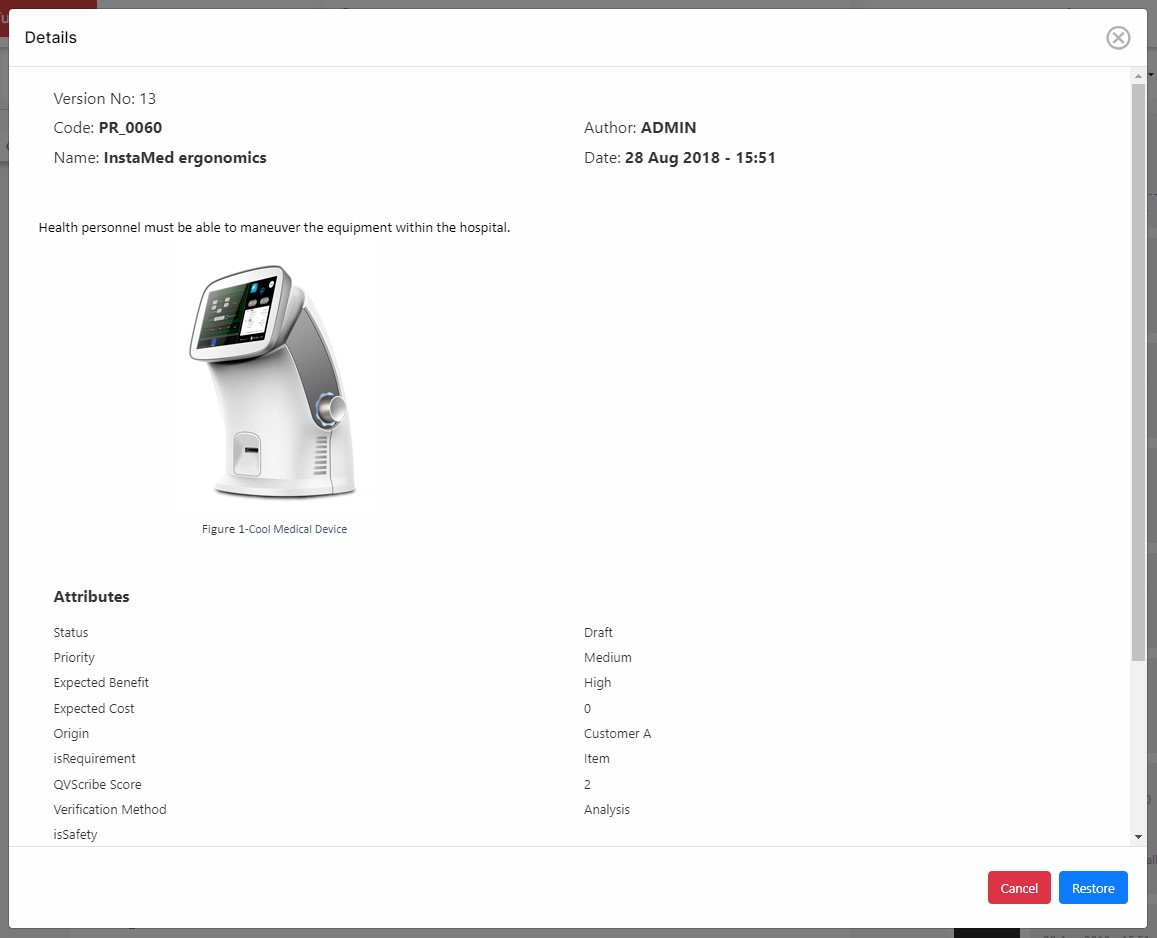
NOTE: If an attribute that was a part of a previous version of the element has been deleted The details of the version shown will be the following:
- If the version in which the deleted attribute appeared belongs to a baseline, the value taken by the attribute in that version will be shown.
- If the version in which the deleted attribute appeared does not belong to a baseline, the attribute will not appear in the list of attributes, and it will not be possible to see the value taken by the attribute in that version of the element.
Users may compare versions by either clicking on the Compare versions button that will enable
users to select two separate versions, or through the more options icon (
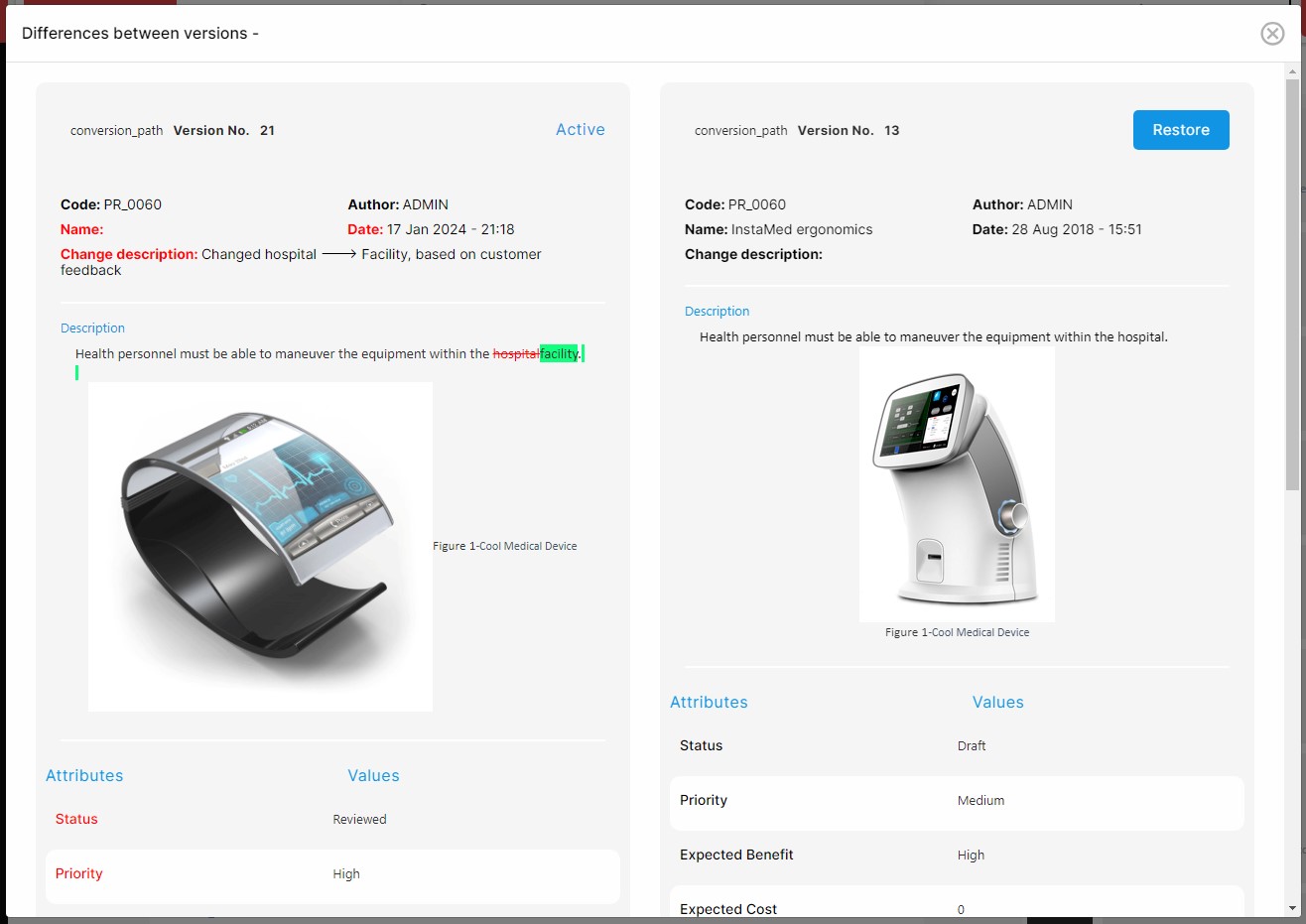
A previous version of an item can also be restored: a new version of the item will be created as a copy of the version being restored and will become the active version.
To restore a previous version of an item, click on the more options icon (
NOTE: To restore an item version, the following conditions need must be met:
- The user must have write permission over the item.
- The item must be checked in.