
Selecting an Active Baseline
When opening a project, the current baseline is displayed by default. It is possible to select a different baseline from the Baselines drop-down menu, which will display all the baselines available in the project:
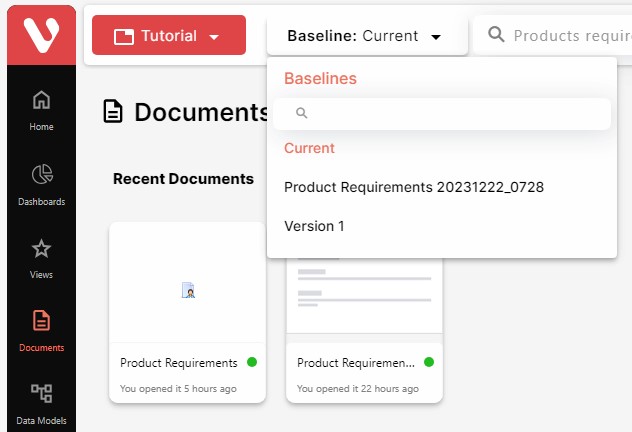
When selecting a baseline, Visure Authoring will automatically revert all the project elements (documents, items, attributes, etc.) to the versions in that particular baseline in order to visualize the project in the exact same state as it was when the baseline was created.
Signing baselines
When the user selects a baseline with a pending signature and selects a specification, a warning message and the Sign button will appear on top of the grid.

To sign the baseline, click on Sign button. A pop-up dialog box will appear:
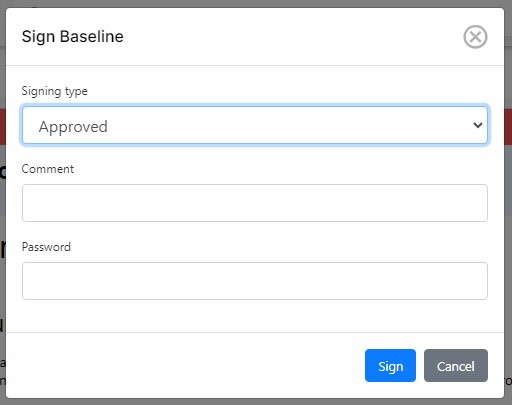
In this dialog, fill in the following fields:
- Type: select one of these meanings for the signature:
- Approved.
- Conditional approval o Declined. o Reviewed o Commented.
- Comments (optional)
- Confirm your password
When done, click on Sign.
Once a baseline is signed, it will not be possible to modify the signature data (either status or comment).