
Traceability Tree View
The Traceability View in Visure provides users with a powerful tool to visualize the complete traceability of elements within an open document. This view ensures that you can easily track relationships, dependencies, and links between requirements and other project elements, enabling better analysis and control of your project.
Below each item, the items linked to it (by any link type) are visible in a tree-like hierarchy.
The Traceability View can be selected in the View Selection Menu
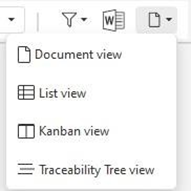
By default, the view will only display the items belonging to the opened document.
From the Documents drop-down menu: Selecting Show all options - will display all items in the project.
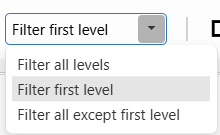
If a filter is applied in the view, by default it is applied only to the first level of the traceability tree. In the Filter first level menu, two more options are available: Filter all levels, Filter all except first level.
Outgoing / Incoming option allows to select the direction (from/to the nodes of the tree) for the displayed links. By default, links by any link type are displayed. The link types can be selected in the 
Key Features
Comprehensive Traceability
See all linked elements for the selected requirement or item in one place, allowing you to understand its impact and dependencies across the project.
Interactive Navigation
Click on any linked element to navigate directly to its details, ensuring seamless exploration of related items.
Hierarchical Display
Visualize traceability in a structured, hierarchical format to understand relationships at multiple levels (upstream, downstream, or both).
Customizable Views
Filter and customize the displayed elements to focus on specific relationships or traceability paths that matter to your analysis.
Impact Analysis
Quickly identify the ripple effects of changes, using suspect links to highlight areas requiring attention and ensuring alignment throughout the project.
The Traceability View is essential for maintaining control over your project’s requirements and ensuring alignment with your objectives. It simplifies the complexity of managing relationships between elements, empowering you to deliver better results with confidence.
Filtering Levels in Visure Traceability View
In Visure, users have the flexibility to apply user-defined filters not just globally, but also by levels within a document or traceability structure. This helps focus on specific layers of requirements and related artifacts like tests or executions.
The filtering options available are accessible from the toolbar in the traceability or document views, as shown in the image below:
General Overview
These filters apply only to user-defined filters (created through the filter funnel icons), not to the quick text search bar.
The purpose is to refine what information is displayed at different hierarchical levels of your items (e.g., requirements, test cases, executions).
1. Filter All Levels
This applies your filter universally across all levels in your hierarchy.
Example:
If you apply a filter for "Status: Approved", Visure will display:
All requirements, test cases, and executions that are marked as Approved.
2. Filter First Level
This filter is limited to the first level of your hierarchy, typically your main requirements or documents.
All linked lower-level items (e.g., test cases, executions) related to these filtered first-level items will also be displayed.
Example:
If you filter "Belongs to Document 8.3", Visure will show:
All requirements from Document 8.3.
Along with their associated test cases and executions, even if those are not from Document 8.3.
3. Filter All Except First Level
This applies your filter only to the lower levels, excluding the first level (e.g., requirements remain fully visible).
Example:
If you filter "Assigned to Steve", Visure will display:
All requirements, regardless of assignment.
But only the test cases and executions that are assigned to Steve.
Practical Use Cases
Filter All Levels: Great when you want to focus on a specific status or attribute shared across all artifacts.
Filter First Level: Ideal for isolating requirements from a specific document or section while still seeing their associated artifacts.
Filter All Except First Level: Useful when you need to analyze test coverage or assignments without narrowing down the requirement scope.
Important Notes
These filter levels are especially powerful in traceability views where multi-level hierarchies are common.
Filters help navigate large datasets and highlight specific concerns within your projects.