How to Integrate with Jira?
If you already purchased your Jira Plug-in, you will find the following buttons in the Plugins tab:
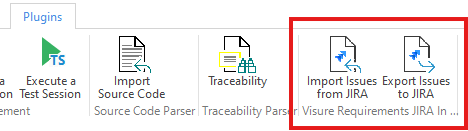
If you don't see them, please reach out to support@visuresolutions.com to request the installation.
Configure Attributes
(JIRA administrators need to turn on the parameter “Accept remote API calls”, in case of using JIRA 5.x.)
In order to execute the integration there are some tasks that need to be performed for both the on-demand and unattended integrations:
| NAME | Attribute Type | Purpose |
| VR_CODE | Short text (plain text only) | Location: Jira It needs to be created into JIRA and assigned to those issue types and projects that will be used for the integration. |
| VR_TRACEABILITY | Paragraph (supports rich text) | Location: Jira It can be optionally created into JIRA and assigned to those issue types and projects that will be used for the integration. |
| VR_URL | Short text (plain text only) | Location: Jira It can be optionally created into JIRA. The attribute stores the URL of the items in Visure Authoring. During the Visure Authoring installation, there is an option to check if the tool should be used to generate URLs. If this option is enabled, VR_URL will be filled when a JIRA synchronization is performed. |
| VR_JIRA_CODE_TYPE | Attribute Type | Location: Visure This step is optional; if the user performing the integration has rights to create attribute types, this attribute type will be automatically created |
| VR_JIRA_KEY | VR_JIRA_CODE_TYPE | Location: Visure It needs to be created into Visure Requirements and assigned to those blocks or elements types (requirements) that will be used during the integration. This step is optional; if the user performing the integration has rights to create attributes, this attribute will be automatically created. |
How to create custom fields in JIRA:
How to create custom attributes in Visure:
Jira Log-in
1. Log-in in your Jira project
2. Open: https://id.atlassian.com/manage-profile/security/api-tokens
3. Create an API Token:
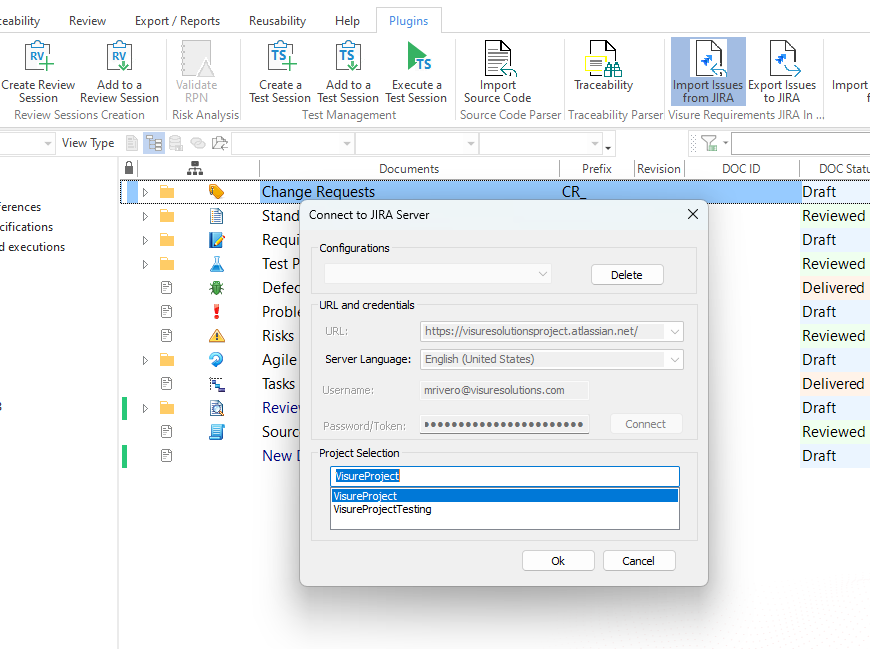
4. Click on Import from Jira to Import
5. Use your Username and the API Token copied to select the project:
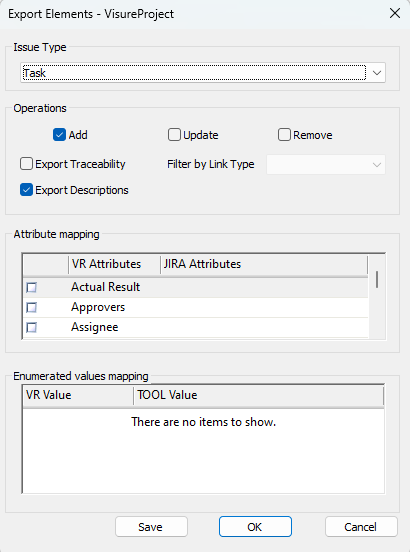
6. Exporting elements: