
The Visure model in 5 minutes
Before you click anything in Visure, here's the picture of how the application organizes everything. The next 5 minutes give you the map; each concept is explored in detail later in the chapter where you actually use it.
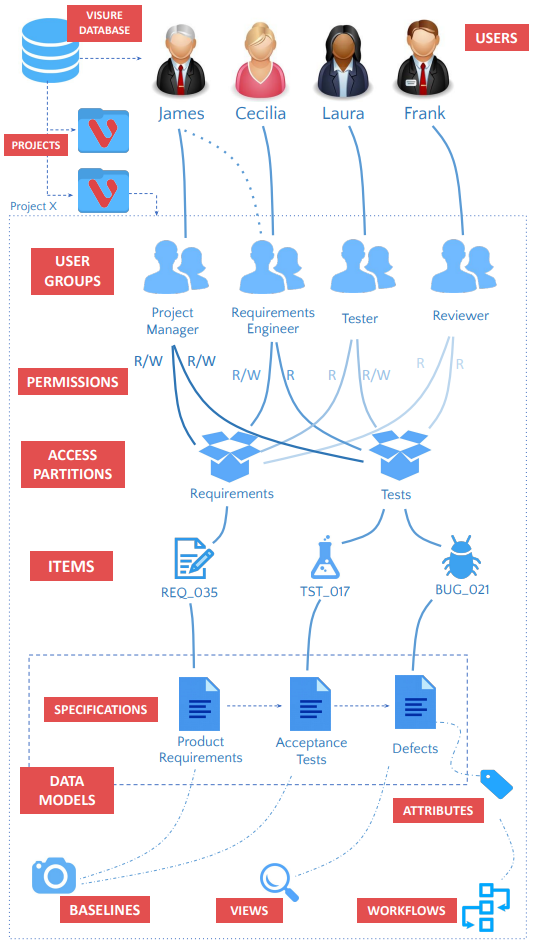
Let's walk through it, top to bottom.
The database sits at the top. It's the storage that holds all of your organization's Visure projects, plus the users that exist across them.
Projects branch off the database. Each project is fully independent — a change in Project A doesn't touch Project B. When you log in, you pick which project to enter. Most organizations run several projects in parallel — one per product, customer engagement, or compliance program.
Users belong to the database, not to individual projects. A single user can be assigned to multiple projects; their capability inside each project is determined by which user groups they belong to there.
User groups live inside each project. They're the configurable role definitions — Project Manager, Requirements Engineer, Tester, Reviewer in the standard templates, plus any custom groups your administrators create. A group's actual power comes from the permissions it holds on access partitions, not from its name.
Access partitions are slices of a project's content — typically Requirements, Tests, Defects. Each user group has one of four permission levels on each partition: no access, read-only, read-write on own creations only, or read-write on all items.
Specifications live inside partitions. A specification — also called a document — is a structured container of items. Most projects have several: System Requirements, Software Requirements, Test Protocols, Defects, and so on. Folders are just specifications that contain other specifications.
Items live inside specifications. An item is the atomic unit of content — typically one requirement, one test, one defect, or one design rule. Every item has a unique code, a name, a description, and a set of attribute values.
Attributes describe items. Some attributes are built into Visure — Code, Name, Created by, Modified date — and apply to every item. Others are defined per project — Priority, Status, Owner, Verification Method, anything your project needs.
Link types connect items across specifications. Common examples are Satisfied by, Verified by, Derived from, and Mitigates. Link types are directional — they describe relationships with intent. The data model is the rulebook that says which specifications can link to which, and with which link type.
Baselines wrap the whole project in time. A baseline is a frozen snapshot — once created, it can't be modified. Baselines answer the question "what did this project look like on day X?" and are the foundation of compliance and audit trails.
Views are saved layouts for browsing items. A team typically builds a handful — one for daily editing, one for reviewing, one for reporting — and switches between them with a single click.
Workflows are attribute-driven state machines. They let an attribute like Status move through defined states (Draft → Reviewed → Approved) with rules about who can move it where.
[VIDEO — 0.2 The Visure model — 2 min connector]
That's the whole model. Don't worry about retaining every concept — you'll meet each one again in the chapters where it's practiced. The diagram and this article are your reference; come back to them whenever a term in a later chapter doesn't click.
Where each concept comes up next
- Projects and the UI for navigating between them → Section 0.3 (Logging in and the UI tour)
- Specifications and folders → Section 1.2 (Documents and folders)
- Items → Section 1.3 (Creating items)
- Attributes → Section 1.5 (Custom attributes)
- Views → Section 1.6 (List View)
- Link types and data models → Section 2.2 (Data models and link types)
- Access partitions → Section B.3 (Users, groups, and access partitions)
- Baselines → Section 2.6 (Baselines)
- Workflows → Section C.4 (Workflows)
Read next: Logging in and the UI tour (Section 0.3)