
The Home Page
The Home Page is your project's landing page — the first thing you see when you enter a project. It's the area accessed by clicking the Home icon at the top of the Elements Panel.
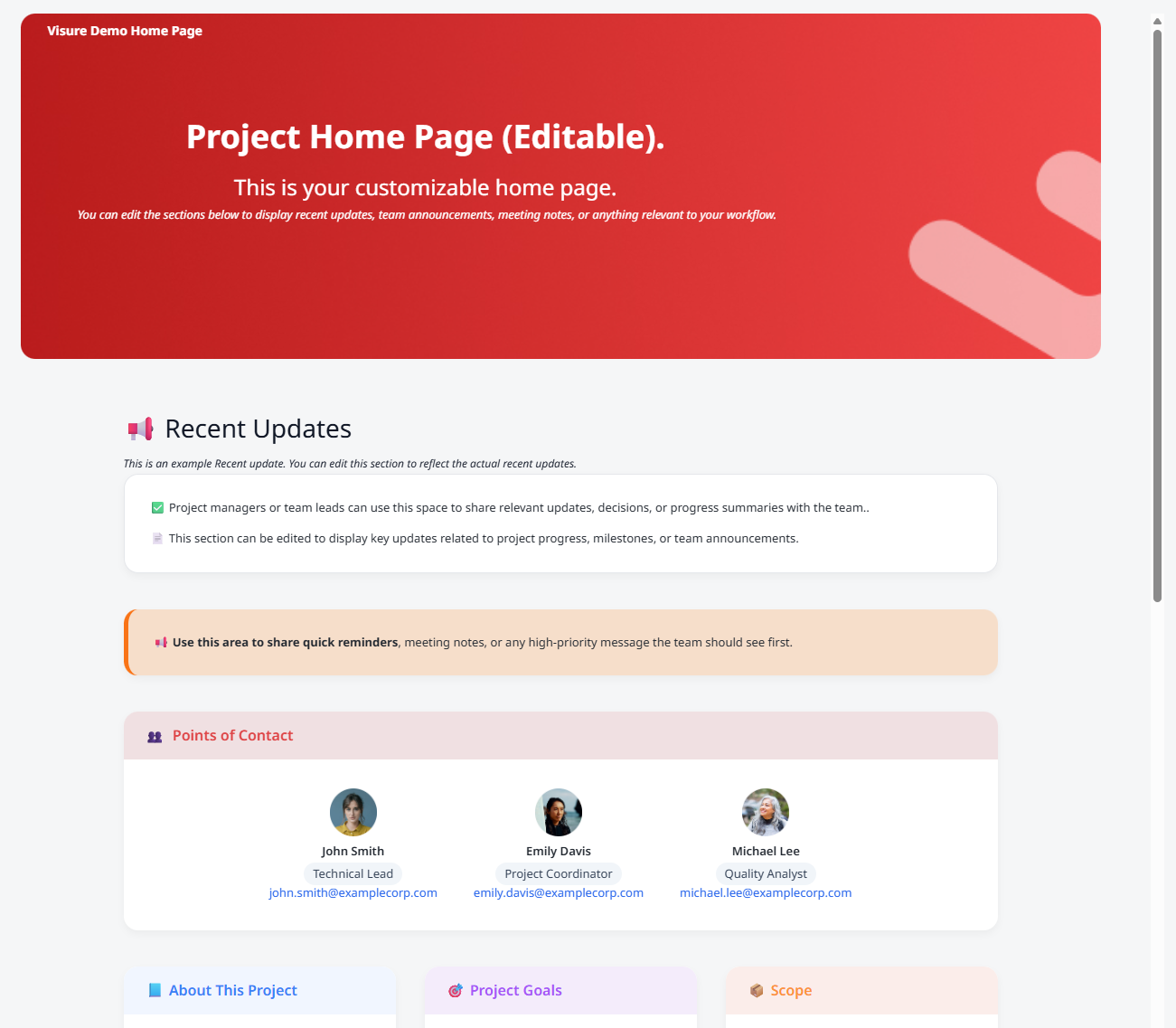
The Home Page is a rich-text content area that's fully editable by project members with the right permissions. Every project ships with default Home Page content when it's created, so the Home Page is never blank — your team can customize it to fit your workflow, replace the default content with your own welcome message, or extend it over time.
What you'll typically find on a Home Page:
- Welcome text describing the project's purpose, current phase, or recent news.
- Quick links to key documents, dashboards, or reviews the team uses often.
- Embedded content — videos, images, tables, or external resources.
- Project status indicators — high-level health, milestone progress, or item counts.
The Home Page is project-specific. Each project has its own Home, customized for that project's team and workflow. Switching to another project shows that project's Home, not a shared one.
To navigate to the Home Page: click the Home icon at the top of the Elements Panel on the left side of the screen. You can return there anytime, from anywhere in the project, with that single click.
Read next: Edit the Home Page · Working with check-in / check-out (Section 1.1)